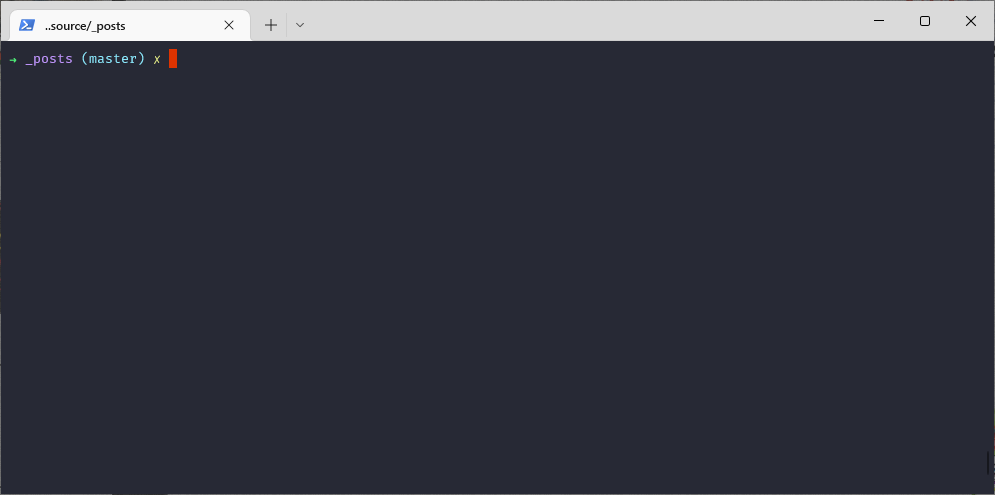
![terminal]()
快速在目前目錄打開 windows terminal
如果想要在右鍵加入選單的話 , 可以參考這個模組 PowerShell-Open-Here-Module , 或是參考這篇
1
2
3
| Import-Module -Name OpenHere
Install-Module -Name OpenHere
sudo Set-OpenHereShortcut -ShortcutType:WindowsTerminal
|
參考這篇設定 或 這篇
另外用 ctrl + L 然後輸入 wt -d . 也可以快速開啟 , 不過預設是在 user 家目錄 , 新增 startingDirectory : . , 或是直接在 defaults 裡面設定也可以
1
2
3
4
5
6
7
8
9
10
11
| {
"commandline": "%SystemRoot%\\System32\\WindowsPowerShell\\v1.0\\powershell.exe",
"font":
{
"face": "FuraCode Nerd Font Mono"
},
"guid": "{61c54bbd-c2c6-5271-96e7-xxxxxxxxxx}",
"hidden": false,
"name": "Windows PowerShell",
"startingDirectory": "."
}
|
設定 windows terminal Dracula 樣式
老樣子還是先到官網去參考
找到 schemes 然後貼上 Dracula 的樣式
1
2
3
4
5
6
7
8
9
10
11
12
13
14
15
16
17
18
19
20
21
22
23
24
25
| "schemes":
[
{
"name": "Dracula",
"cursorColor": "#F8F8F2",
"selectionBackground": "#44475A",
"background": "#282A36",
"foreground": "#F8F8F2",
"black": "#21222C",
"blue": "#BD93F9",
"cyan": "#8BE9FD",
"green": "#50FA7B",
"purple": "#FF79C6",
"red": "#FF5555",
"white": "#F8F8F2",
"yellow": "#F1FA8C",
"brightBlack": "#6272A4",
"brightBlue": "#D6ACFF",
"brightCyan": "#A4FFFF",
"brightGreen": "#69FF94",
"brightPurple": "#FF92DF",
"brightRed": "#FF6E6E",
"brightWhite": "#FFFFFF",
"brightYellow": "#FFFFA5"
},
|
接著回到 defaults , colorScheme 選 Dracula 即可
1
2
3
4
5
6
| "defaults": {
"acrylicOpacity": 0.8,
"useAcrylic": true,
"colorScheme": "Dracula",
"startingDirectory": "."
},
|
透明度
萬一透明度有問題可以參考這篇 or 這篇
我自己是需要修改 reg 檔才設定成功
先輸入 regedit 然後到這個路經
1
| HKEY_LOCAL_MACHINE\SOFTWARE\Microsoft\Windows\DWM
|
接著新增 ForceEffectMode => DWORD => Hexadecimal => 值輸入 2 , 最後 restart-computer 即可生效
後來發現好像有個 bug , 我的透明度一直都會有毛玻璃效果 , 用起來也是不大舒服
特別注意以下這些參數
acrylicOpacity => 0 - 1 之間的毛玻璃透明度
useAcrylic => true or false 啟動毛玻璃效果
opacity => 0 - 100 單純透明度 , 這個我怎麼設定好像都沒法 work , 看老外也有一樣的問題 , 只好放棄
1
2
3
| "acrylicOpacity": 0.8,
"useAcrylic": true,
"opacity" : 80
|
新增 conda powershell
因為偶爾有搞 python 的緣故 , 如果需要用 conda 可以這樣設定
1
2
3
4
5
6
7
8
9
10
11
12
| {
// Anaconda Prompt
"guid": "{2daaf818-fbab-47e8-b8ba-2f82eb89de40}",
"colorScheme": "Dracula",
"font": {
"face": "FuraCode Nerd Font Mono"
},
"name": "Anaconda Prompt",
"startingDirectory": "%USERPROFILE%",
"commandline": "%windir%\\System32\\WindowsPowerShell\\v1.0\\powershell.exe -ExecutionPolicy ByPass -NoExit -Command \"& 'C:\\tools\\Anaconda3\\shell\\condabin\\conda-hook.ps1' ; conda activate 'C:\\tools\\Anaconda3' ",
"hidden": false
},
|